

When we have a massive number of landing pages are being used in several different campaigns once in a while a health check is required to make sure they are working properly and we are not paying for clicks that generate 404 errors.
Google analytics and screamingfrog are 2 useful tools to find out those 404 throwing landing pages, let us describe the steps which are pretty simple to follow.
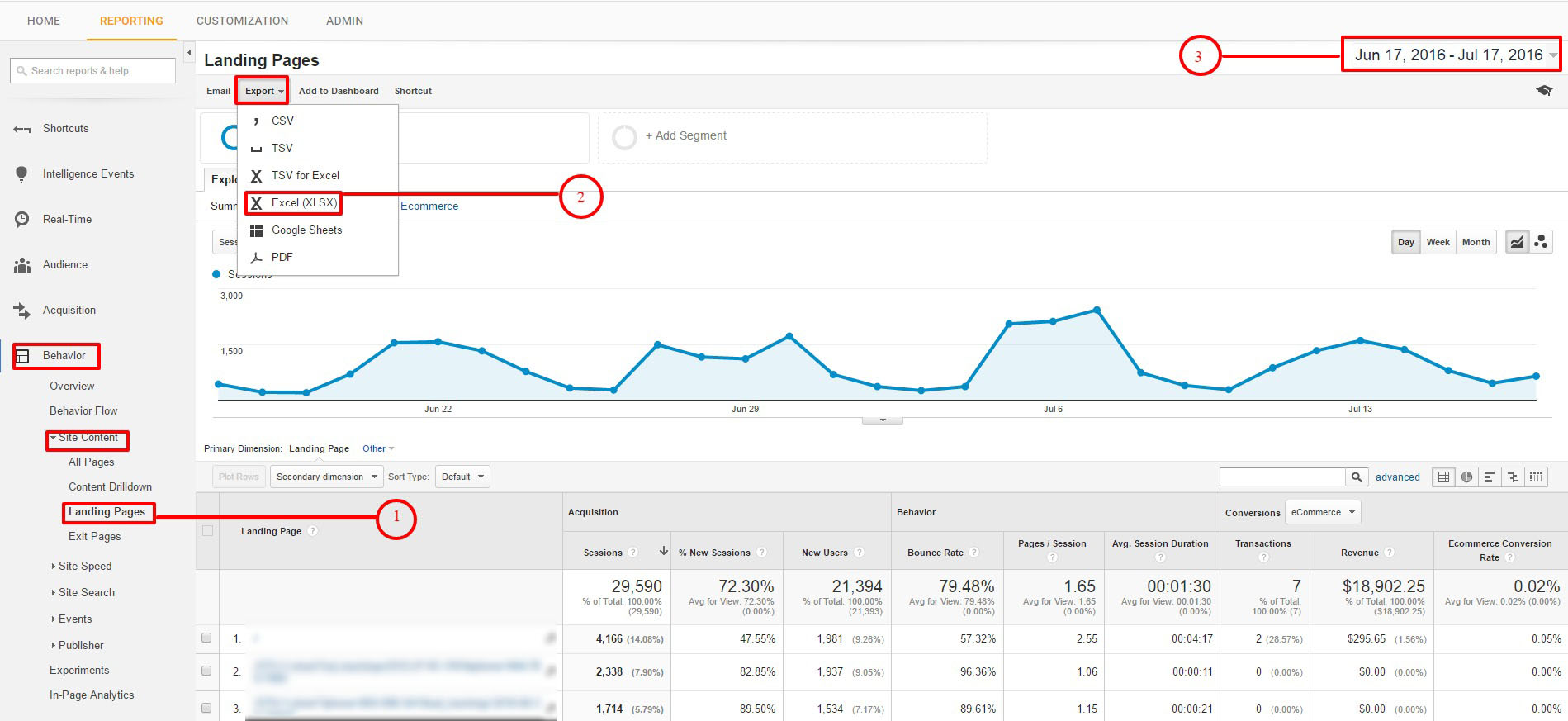
First off login to your google analytics account and then follow the steps below to get the landing pages downloaded
1. Click on the “REPORTING” menu on top & pick your date ranges
2. Then choose “Behavior> Site content>Landing Pages” on the left column
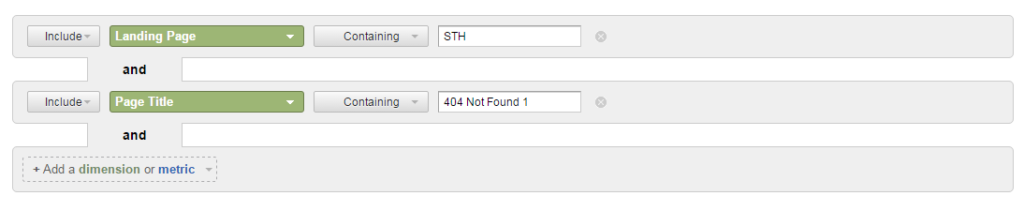
3. You will see the list of landing pages and then use reporting view filters to get the exact landing pages which are being used in different campaigns, regex knowledge will come in handy in this step.
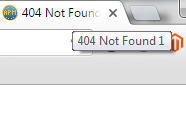
And then by using the “Page Title” Dimension we will find the landing pages which throws 404, the easiest way to find a 404 page is to type a random few characters after the domain, e.g. www.example.com/abcdef and see the title of that page
Google analytics advanced filter will be something like this
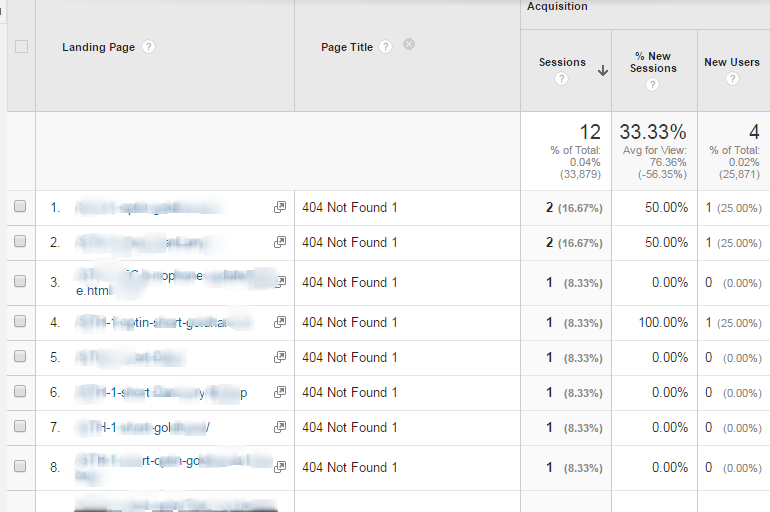
And here is the final output
2. Export/Download pages from here
3. You can also select date range from here

After downloading the file, remove all columns accept link address column. Then open Screaming Frog tools, next upload file click by Upload List button. After uploading all URL you can see all Response Codes from Response Codes menu.
# How to find 404 from google analytics
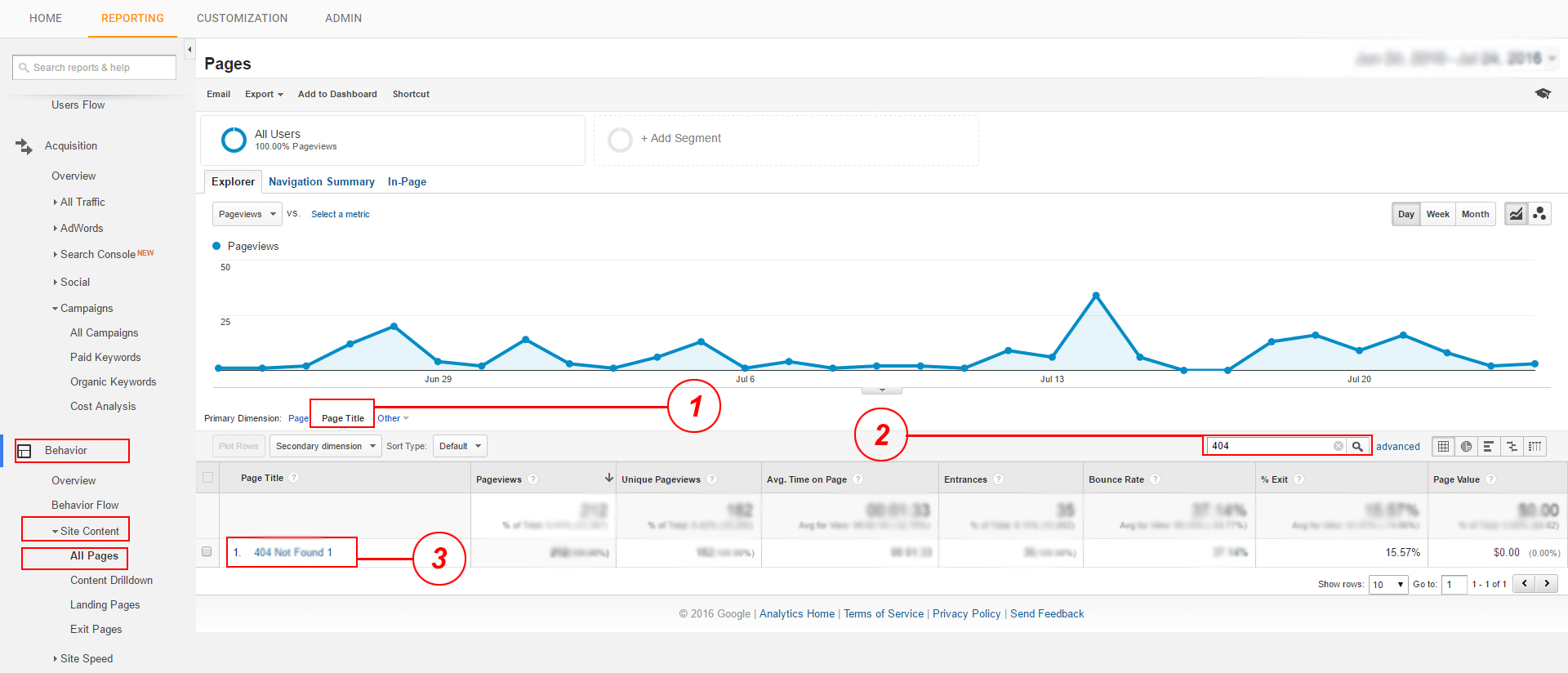
GO–>Behavior>All Pages
1. Click Page Title from here
2. Then search 404 page from here
3. Next, chick 404 Not Found 1 from here
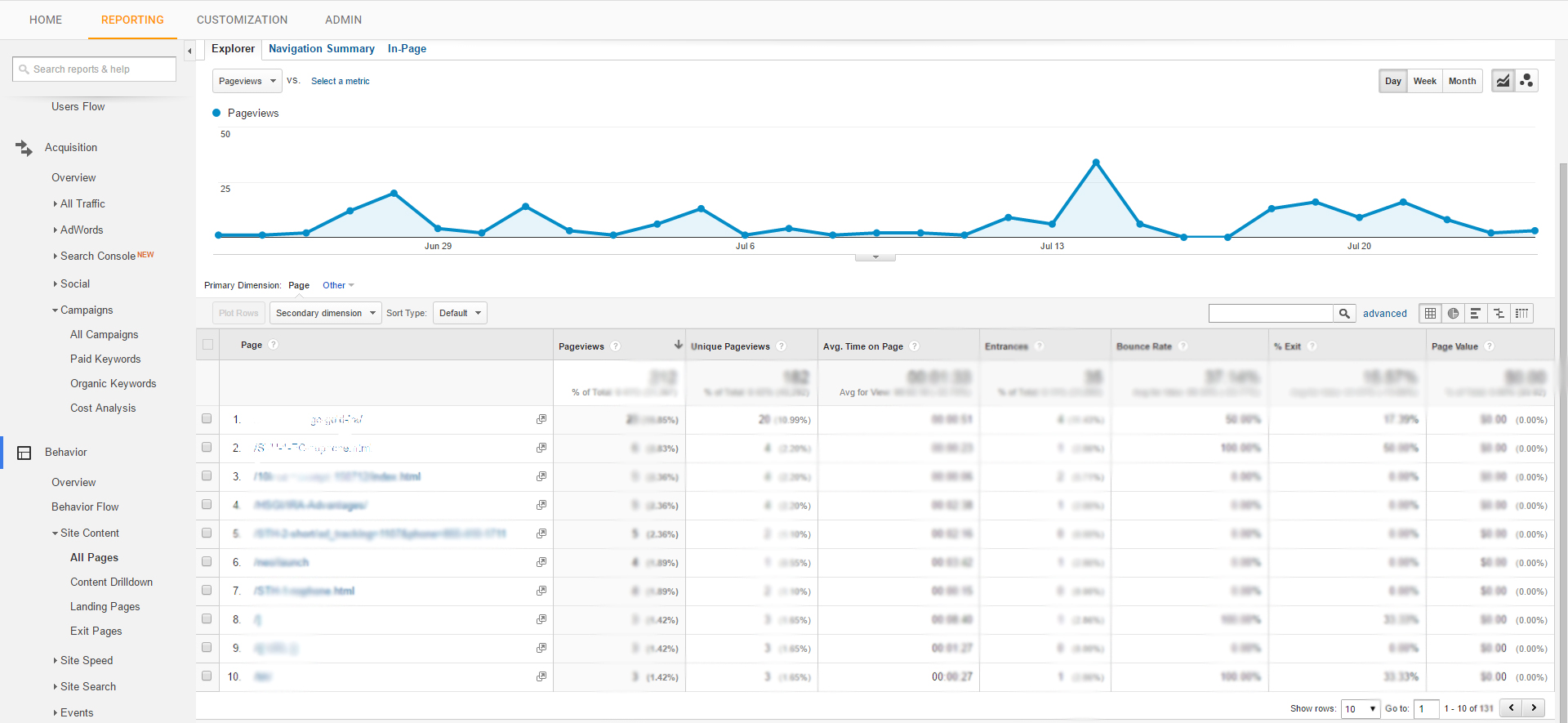
Then you can see all 404 pages here
https://analytics.google.com/analytics/web/#report/content-landing-pages/
Login to analytics.google.com then go Reporting section Next go Behavior> Site content>Landing Pages
1. You can find all landing pages from here
2. Export/Download pages from here by Excel (XlSX) file
3. You can also select date range from here
After downloading file, remove all columns accept link address column.
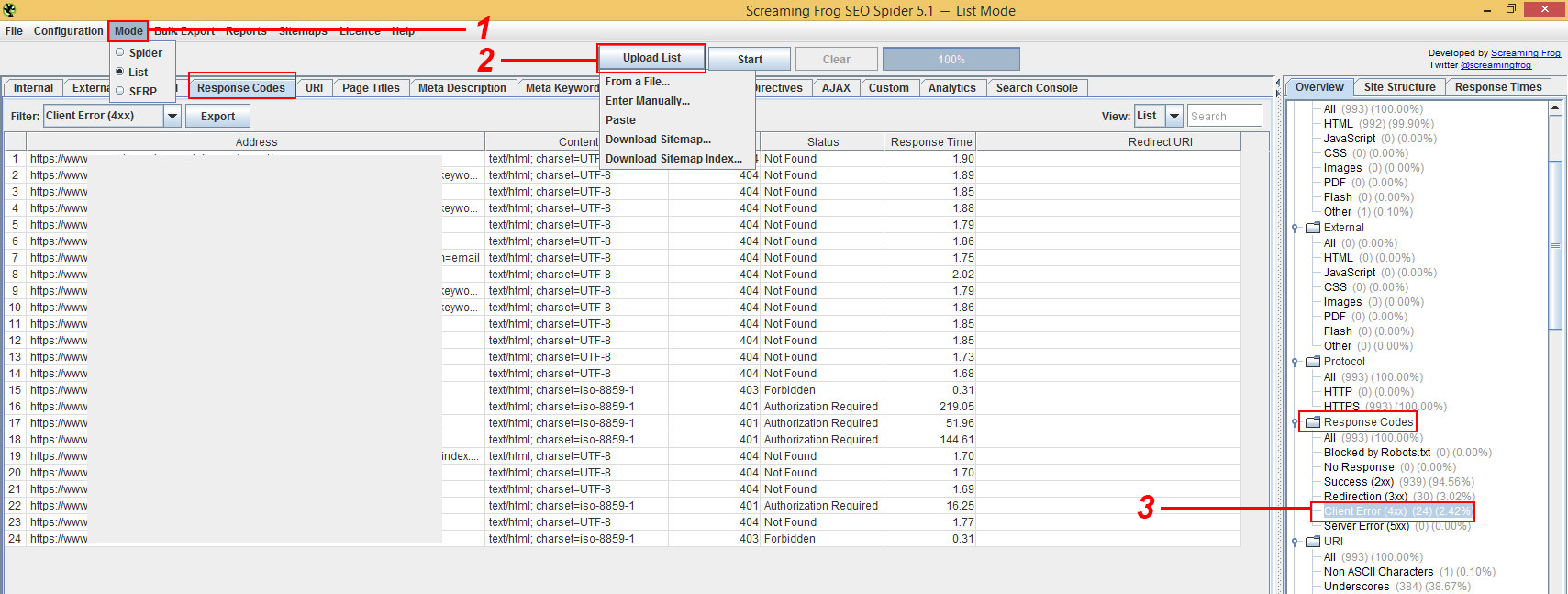
Then open Screaming Frog tools
1. Select List option from Mode.
2. Next click Upload List and select From a File option. You can also upload manually click by Enter Manually option.
3. Now you can see all Response Codes from Response Codes menu.
Step into the future with CyberNetikz, where we craft tomorrow’s tech innovations with today’s coding artistry Mega Medusa Casino.